Merge Sheets API provides a powerful solution for merging data from multiple Google Sheets. Instead of manual VLOOKUP or INDEX/MATCH operations, you can automatically join spreadsheet data based on matching key columns. Seamlessly pull matching values or append non-matching rows to create a unified master table.
Authentication
Before performing merge operations, you must authorize the API via Google OAuth to access and modify your spreadsheets.
To authorize the API, follow these steps:
-
Open the following link in your browser and complete the Google login process:
https://prapi.appscript.pro/api/v0/g/auth_api -
After you complete the authorization, the service will generate a JWT Token.
Note: The JWT Token is a secret credential that grants access to the user's session. It must be stored securely and never exposed in public repositories or client-side code.
All subsequent API calls require the JWT token to be passed in the Authorization header with the Bearer prefix:
Authorization: Bearer <YOUR_JWT_TOKEN>
Manage Google Connection:
To verify if the internal Google Refresh Token is valid and the service still has access to the user's spreadsheets:
GET https://prapi.appscript.pro/api/v0/user/0/
{
  "access_to_google_profile": true
}
To revoke the Google Refresh Token and disconnect the user from the service:
GET https://prapi.appscript.pro/api/v0/user/0/revoke-refresh-token
Execute Merge Task
To perform a merge operation, you must create a job. This endpoint starts the processing based on the provided JSON body.
HTTP Request: POST https://prapi.appscript.pro/api/v0/user/0/run
Headers:
- Content-Type:
application/json - Authorization:
Bearer <YOUR_JWT_TOKEN>
Request Body:
The body must contain the tool, name, license, and payload fields:
| Field | Type | Description |
|---|---|---|
| tool | Number | Required flag. Always set to 7. |
| name | String | The name of the scenario. |
| license | String | Your license key. |
| payload | Object | The configuration object with the fields defined in the Scenario Schema chapter below. |
Example request structure:
{
    "tool": 7,
    "name": "My Merge Scenario",
    "license": "YOUR_LICENSE_KEY",
    "payload": { ...configuration object... }
}
Response: This request returns a Job ID.
Check Job Status
Once a task is created, you can track its status using the Job ID returned by the execution request.
Endpoint: GET https://prapi.appscript.pro/api/v0/user/0/run/:jobId
The endpoint returns the current status of the job:
- pending: The job is queued and waiting to start.
- running: The job is currently being processed.
- successful: The job completed successfully.
- successful_with_mail: The job completed with warnings. The warning details have been sent to the registered email address.
- failed: The job failed to complete due to an error.
Scenario Schema
The Scenario schema defines the structure of the payload object required in the execution request. This object contains the main configuration for the merge operation, including the main sheet, lookup sheets, and merge rules.
Root Request Attributes
The main configuration object. It defines the entire merge operation: which sheets to use, how to match rows, and which columns to update.
| Field | Type | Description |
|---|---|---|
oMergeRules |
Object | Merge settings. (See Merge rules object) |
oMainSheet |
Object | The main table to which data will be merged. (See Sheet object) |
aLookupSheets |
Array | Lookup tables containing the data to pull. (See Sheet object). |
aMatchingColumnsMapping |
Array |
Defines the key columns to join data. (See Column Naming Rules). Format: [["MainHeader", "LookupHeader"], ...] |
aUpdateValueMapping |
Array | Defines which columns to update in the main sheet. (See Column Naming Rules). Format: [["MainHeader", "LookupHeader"], ...] |
aAddToEndList |
Array | List of columns from lookup sheets to add as new columns. Format: ["LookupHeader1", "LookupHeader2"] |
sScenarioName |
String | The name of the merge scenario. |
migrateVersion |
Number | Schema version. Must be set to 2. |
Sheet Object
This object defines the specific location of data within Google Drive. It specifies the target file, the tab name, and the cell range to be processed.
Note: Used in oMainSheet and aLookupSheets
| Field | Type | Description |
|---|---|---|
sSheetName |
String | The tab name within the spreadsheet. |
sSpreadsheetId |
String | The unique Google Drive file ID. |
sSpreadsheetName |
String | The name of the spreadsheet file. |
sA1Notation |
String |
The range to process.
|
Merge Rules Object
This object defines the behavior of the merge operation, including matching logic, update conditions, and formatting options.
Note: Used in oMergeRules.
| Field | Type | Description |
|---|---|---|
bIsMasterSheetBackupRequired |
Boolean | Specifies whether to create a backup. If true, a copy of the main sheet will be created before any changes are applied. |
sSpreadsheetId |
String | Required flag. Must be an empty string. |
bMainHasHeaders |
Boolean | Indicates if the main sheet has a header row (usually the 1st row). |
bLookupHasHeaders |
Boolean | Indicates if the lookup sheets have header rows. |
bIgnoreBlanks |
Boolean | Sets whether to skip empty cells. If true, empty cells in key columns will be ignored during matching. |
bMatchCase |
Boolean | Specifies the case sensitivity. If true, text case is considered. If false, matching is case-insensitive. |
bAddNonMatchingRows |
Boolean | Defines whether to append new rows. If true, rows from lookup sheets that were not found in the main table will be added to the end of the main table. |
bAddStatusColumn |
Boolean | Indicates whether to add a status column. If true, adds a new column to the result indicating the merge status for each row. |
bUpdateEmptyCells |
Boolean | Updates only empty cells. If true, data from lookup sheets will only be written into empty cells of the main table. |
bUpdateIfLookupCellsContainData |
Boolean | Clarifies whether to skip empty lookup data. If true, the main table is updated only if the source cell in the lookup sheet is not empty. |
bPlaceResultToMainTable |
Boolean | Defines the output location. If true, writes results directly to the main sheet. (Must be false if bPlaceResultToNewSpreadsheet is true). |
bPlaceResultToNewSpreadsheet |
Boolean | Creates a new file with the result. (Must be false if bPlaceResultToMainTable is true). |
bMergeNotes |
Boolean | Required flag. Must always be set to true. |
bInsertAdditionalRowsAtEnd |
Boolean | Determines how to handle multiple matching rows. If multiple matches are found, insert additional rows at the end of the main table. (Must be false if bInsertAdditionalRowsAfterMainRow is true; however, both can be false). |
bInsertAdditionalRowsAfterMainRow |
Boolean | Inserts additional matching rows after the row with the same key value, if multiple matches are found. (Must be false if bInsertAdditionalRowsAtEnd is true; however, both can be false). |
bClearBackgroundColor |
Boolean | Clears background color in updated columns before merging. |
bUpdatedCellsSetBackgroundColor |
Boolean | Applies a specific background color to all cells in the main table that were modified during the merge. |
sUpdatedCellsBackgroundColor |
String | Identifies the Hex color code (e.g., "#6fa8dc") used for highlighting. |
bUpdateValuesInActionRequired |
Boolean | Legacy parameter. Set to false. |
Column Naming Rules
When defining column names in aMatchingColumnsMapping and aUpdateValueMapping, follow these rules depending on your configuration.
-
If headers are not present
If you set "bMainHasHeaders":
falseor "bLookupHasHeaders":false, you cannot use text names. Instead, refer to columns using the "Column + Letter" format, such as:"Column A", "Column B", "Column C", etc.Example"aUpdateValueMapping": [ [ "Column A", "Column A" ], [ "Column B", "Column D" ]] -
If tables have headers
If headers are present ("bMainHasHeaders":
falseor "bLookupHasHeaders":false), the following rules apply:Case insensitivity: Column names are not case-sensitive (e.g.,
"KeY"is treated the same as"key").Whitespace trimming: Leading and trailing spaces are ignored (e.g.,
" key "is read as"key").Maximum length: Header names are limited to 28 characters.
Duplicate headers: If your sheet contains multiple columns with the exact same name, map the 2nd or subsequent duplicate column using the format:
\u00A0 + (N) + Space + Header name
Where:
- \u00A0 is a unicode non-breaking space.
- (N) is the ordinal number (starting from 2).
- Space is a standard space.
- Header name is the actual name of the header.
Three columns named "Price" will appear as:
"Price", "\u00A0(2) Price", "\u00A0(3) Price".In your JSON configuration, it will look like this:
JSON"aUpdateValueMapping": [ [ "Price", "Price" ], [ "\u00A0(2) Price", "\u00A0(2) Price" ]],
Request Body Example
Below is a complete JSON configuration example:
{
    "tool": 7,
    "name": "My Merge Scenario",
    "license": "YOUR_LICENSE_KEY",
    "payload": {
        "oMergeRules": {
            "bIsMasterSheetBackupRequired": false,
            "sSpreadsheetId": "",
            "bMainHasHeaders": true,
            "bLookupHasHeaders": true,
            "bIgnoreBlanks": false,
            "bMatchCase": false,
            "bAddNonMatchingRows": true,
            "bAddStatusColumn": false,
            "bUpdateEmptyCells": false,
            "bUpdateIfLookupCellsContainData": false,
            "bPlaceResultToMainTable": false,
            "bPlaceResultToNewSpreadsheet": true,
            "bMergeNotes": true,
            "bInsertAdditionalRowsAtEnd": true,
            "bInsertAdditionalRowsAfterMainRow": false,
            "bClearBackgroundColor": false,
            "bUpdatedCellsSetBackgroundColor": false,
            "sUpdatedCellsBackgroundColor": "#6fa8dc",
            "bUpdateValuesInActionRequired": false
        },
        "oMainSheet": {
            "sSpreadsheetName": "Bookstore_Inventory",
            "sSpreadsheetId": "1Sfpqweb4r5f73q04867fgqw90364fg946wqfowefuhk",
            "sSheetName": "Master_List",
            "sA1Notation": "namedrange"
        },
        "aLookupSheets": [
            {
                "sSheetName": "Vendor_Updates",
                "sSpreadsheetId": "1sdfkwn34scrt843r19x4asdf23fn23asdfufg",
                "sSpreadsheetName": "Vendor_List_Q1",
                "sA1Notation": ">SC_ADR3<"
            },
            {
                "sSheetName": "Daily_Sales",
                "sSpreadsheetId": "1enfvowiu54yc4c5908y34059vyt340h7g734M",
                "sSpreadsheetName": "Sales_Report",
                "sA1Notation": "A1:C200"
            }
        ],
        "aMatchingColumnsMapping": [
            [
                "ISBN",
                "ISBN"
            ]
        ],
        "aUpdateValueMapping": [
            [
                "Price",
                "New_Price"
            ],
            [
                "Stock_Qty",
                "Current_Stock"
            ]
        ],
        "aAddToEndList": [
            "Author",
            "Category"
        ],
        "sScenarioName": "Update Inventory: Prices & Stock",
        "migrateVersion": 2
    }
}
How to generate your JSON configuration object automatically
Don't want to write JSON from scratch? You can use the visual Merge Sheets add-on as a "code generator."
To get the JSON payload (configuration object) for your merge settings, follow these steps:
- Download and install the Merge Sheets add-on from the Google Workspace Marketplace.
-
Open the add-on, set up the settings in five simple steps using the visual interface.
Tip: Learn how to use the add-on on the help page. - Run the merge.
-
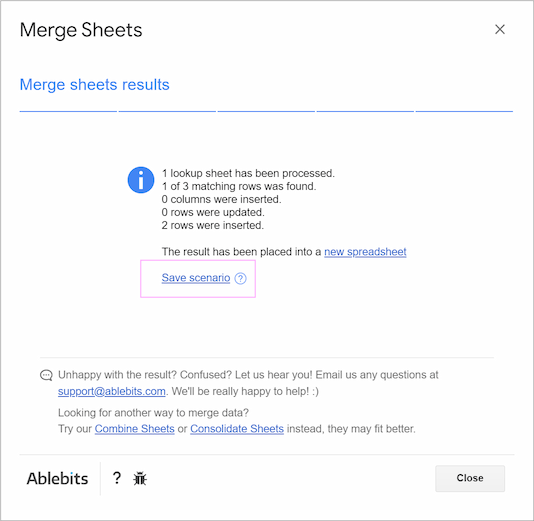
Once the add-on processes your data successfully, save your settings as a scenario by clicking Save scenario in the result message.
-
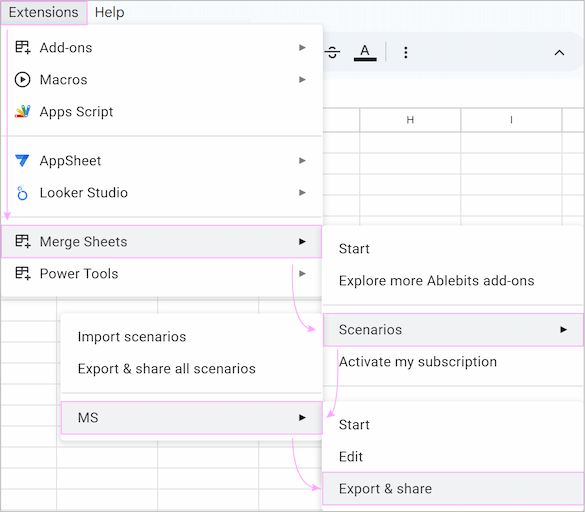
Go to Extensions > Merge Sheets > Scenarios, select your saved scenario, and click Export & share.
-
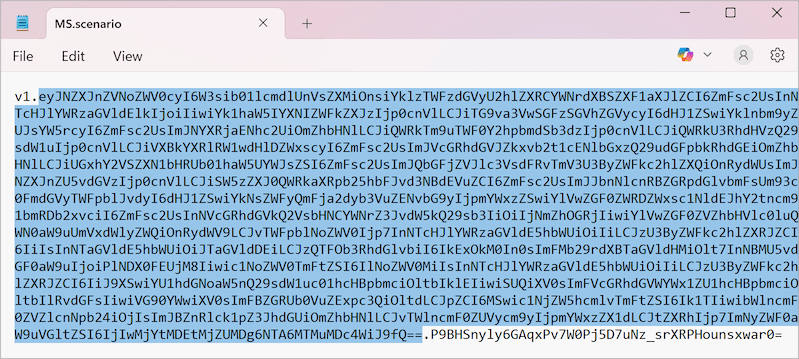
Once your browser downloads the file, open it in any text editor. You will see a long string with two dots:
-
Copy only the middle part - the text between the first and the last dot.
eyJNZXJnZVNoZWV0cyI6W3sib01lcmdlUnVs……UMDg6NTA6MTMuMDc4WiJ9fQ==
Note: The first dot is usually the 3rd character, and the last dot is near the very end. -
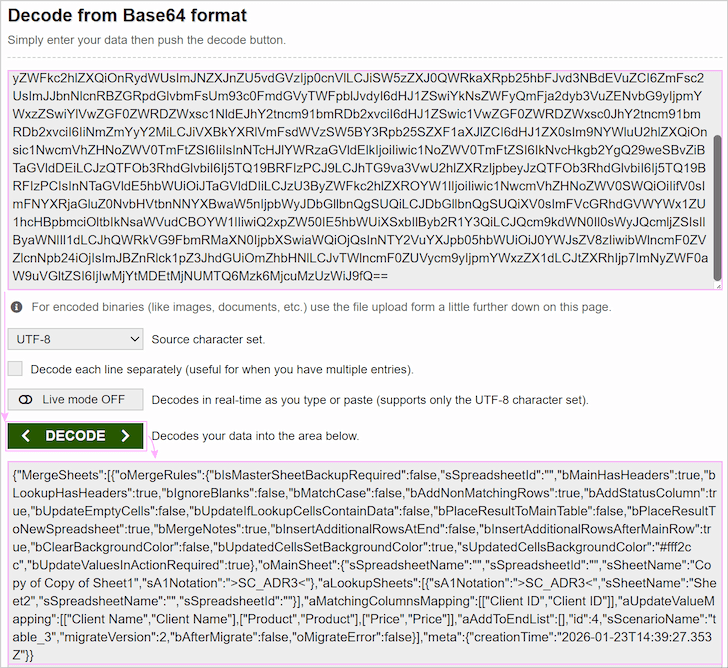
Open any Base64 decoder (such as base64decode.org). Paste this string into the upper field, press Decode, and copy the result from the lower field.
-
(Optional) Use a tool like JSON Formatter or the Notepad++ JSON plugin to format the output clearly.
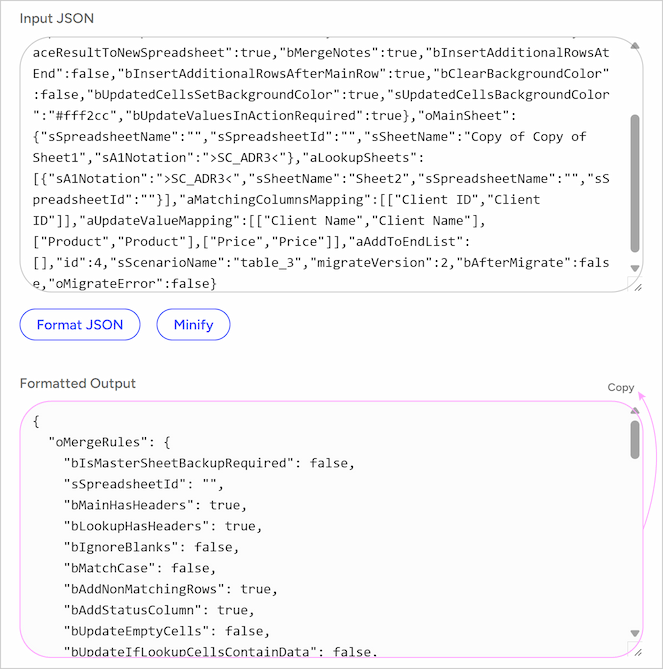
-
The decoded result includes a root object {"MergeSheets": [...] and metadata that the API does not need. You only need the configuration object located between the square brackets. Copy your code without the outer wrapper properties, excluding the square brackets themselves:
{"MergeSheets": [{COPY THIS PART}] ,"meta":{"creationTime":"2026-01-23T14:39:27.353Z"}} -
Look at the
oMainSheetandaLookupSheetsobjects in your JSON. Since the add-on works with the active spreadsheet, the export often leaves thesSpreadsheetIdfield there empty. You must manually paste the correct Spreadsheet ID into these fields, otherwise the API will not know which file to process.
You now have a perfect configuration object (payload) ready for the API!